Best Weather Widgets for iPhone in 2026, Ranked
Here is the uncomfortable truth about weather apps: you barely open them. You check the widget. Most people look at their Home Screen dozens of times a day and open a weather app once or twice a week, which means the widget is the app for almost everybody. It deserves more thought than it usually gets.
Key takeaways
- Apple Weather is the best free default widget and costs nothing to try, because it is already installed.
- Pick the widget by the one thing you want at a glance: the number, the timeline, the radar, or a face that makes you look.
- Lock Screen widgets are the highest value real estate on the phone, and most people never set one up.
- A Live Activity beats any widget on a changeable day, since it updates in real time on the Lock Screen and in the Dynamic Island.
- If your widget is stuck, it is nearly always location permission, Background App Refresh, or Low Power Mode, in that order.
We build one of the widgets on this list, so treat our number one the way you would treat any recommendation from someone with a stake in it. Everything below describes what each widget actually shows, which you can verify in about a minute in the widget gallery.
What makes a weather widget worth a Home Screen slot
- One glance, one answer. A widget crammed with nine data points is a small, unreadable app. The best ones commit: a number, a condition, and maybe a trend.
- It has to be current. Widgets refresh on a system managed schedule, not continuously. A widget that regularly shows yesterday's high is worse than no widget.
- Sizes that fit your layout. Small for a corner, medium for hourly, large for the full day, plus a Lock Screen version. Apple documents the full family in its widget design guidelines.
- Does it earn a second look? This is the part roundups skip. A widget you have stopped noticing is not doing its job, no matter how accurate it is.
The widgets at a glance
| Widget | Best for | Where it goes | Live Activity | Cost |
|---|---|---|---|---|
| WeatherPets | A widget you actually look at | Home Screen in 3 sizes, Lock Screen | Yes | Free, subscription for scenes |
| Apple Weather | The reliable default | Home Screen in 3 sizes, Lock Screen | No | Free, built in |
| CARROT Weather | Total customization | Home Screen, Lock Screen, Watch | Yes | Free, Premium tiers |
| Weather Strip | Seeing the whole day at once | Home Screen timeline widgets | Not listed | Free with in-app purchase |
| Hello Weather | Minimalists and Apple Watch | Home Screen, Lock Screen, Watch | Not listed | Free, subscription |
| Widgetsmith | Matching a Home Screen aesthetic | Home Screen, Lock Screen, custom | No | Free, subscription |
1. WeatherPets, the widget you actually look at
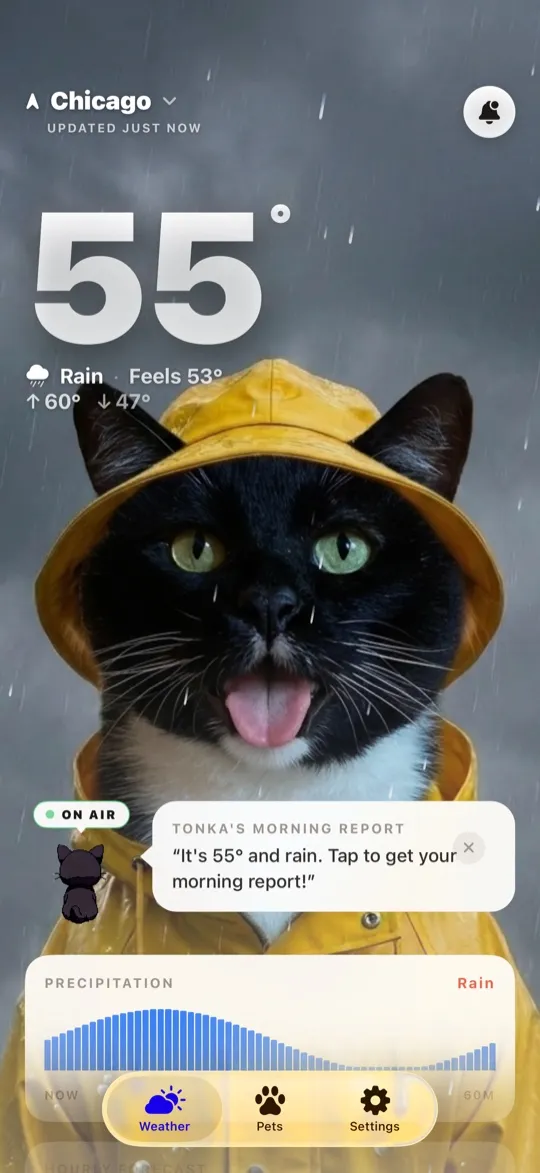
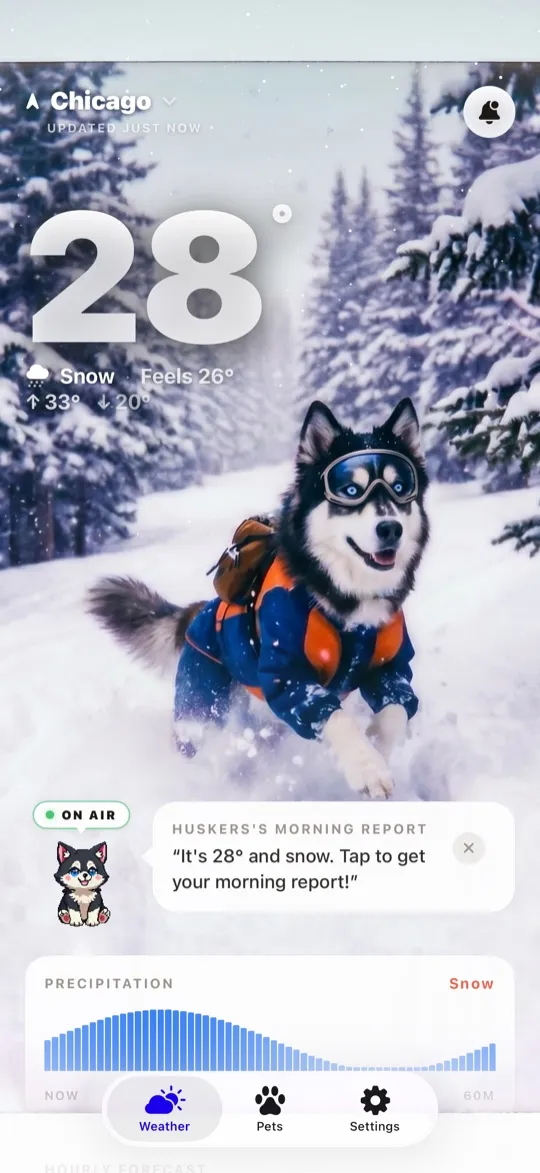
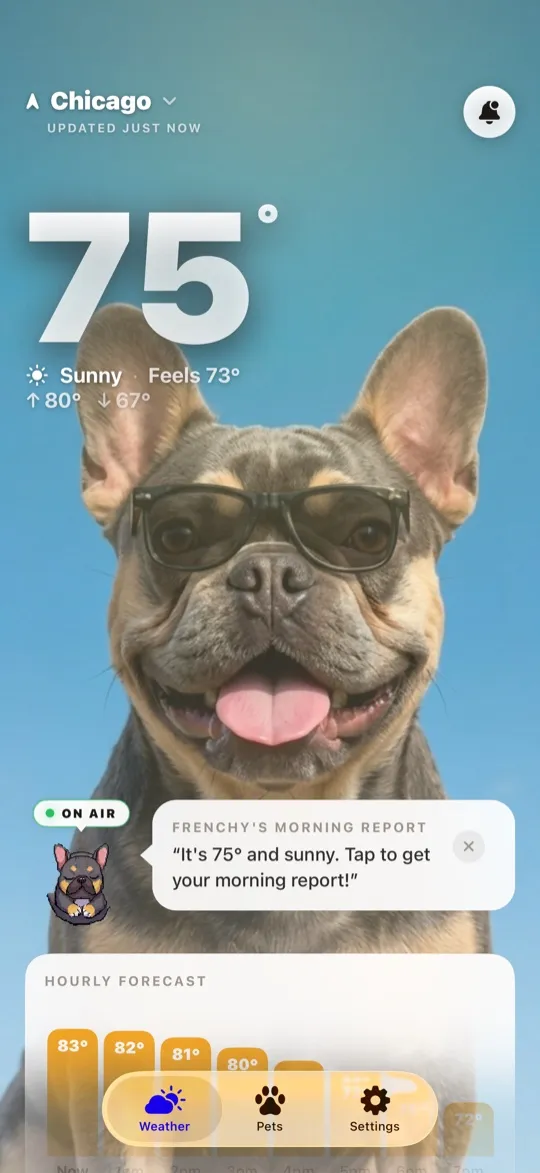
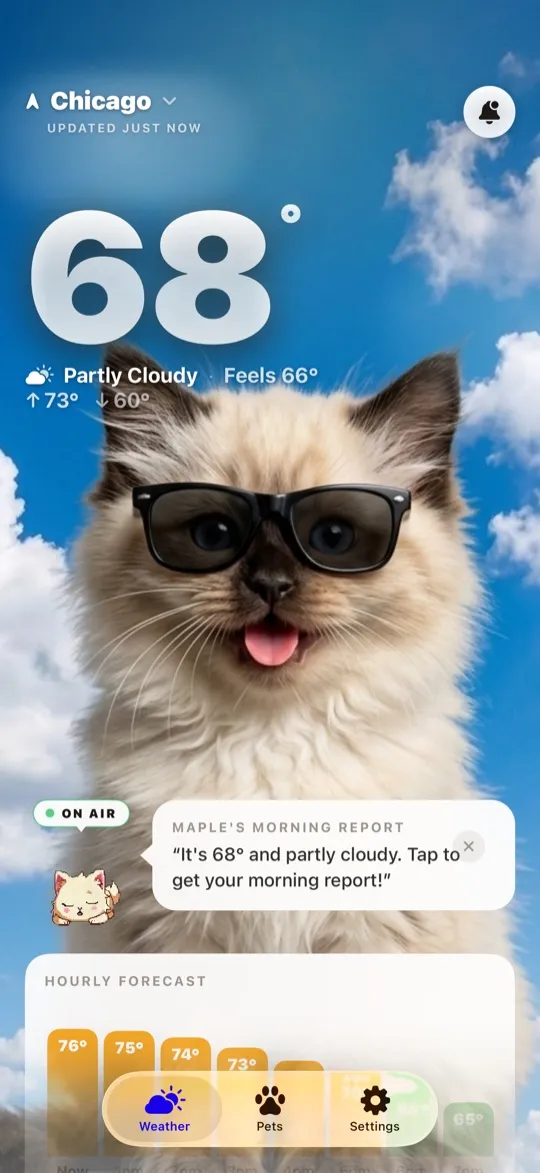
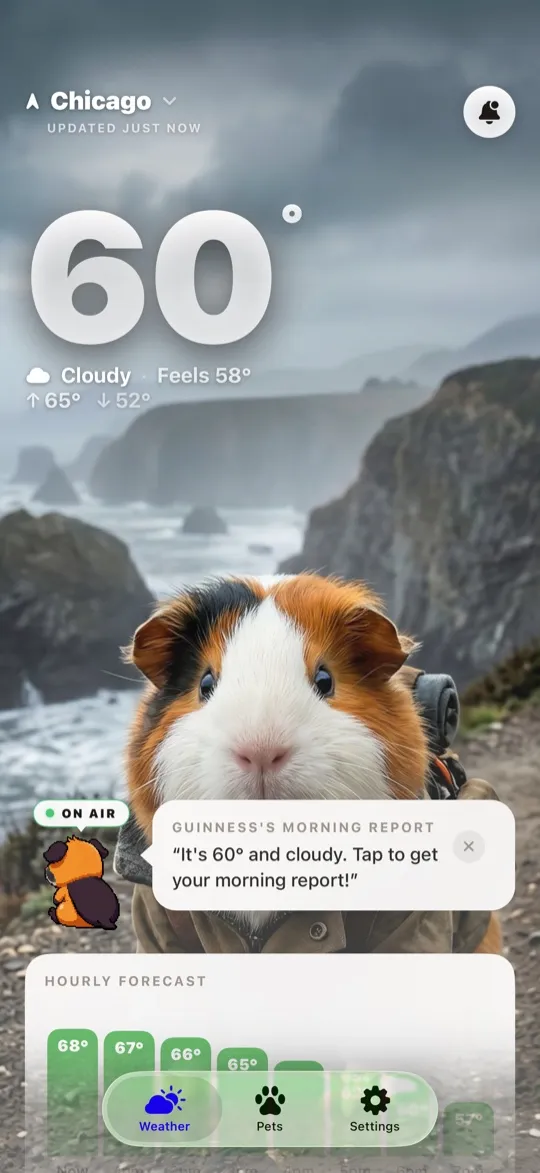
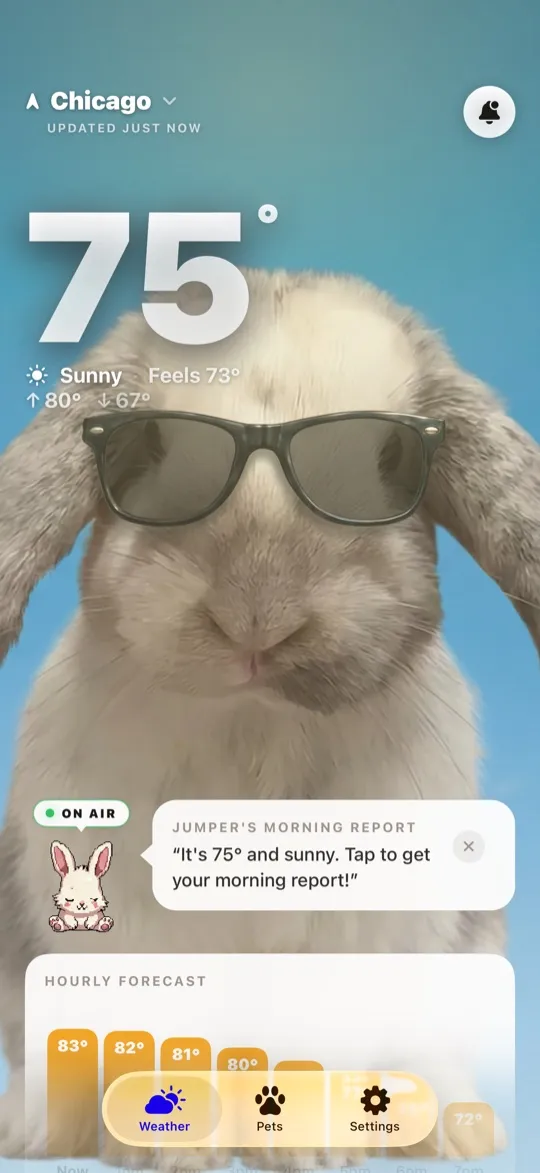
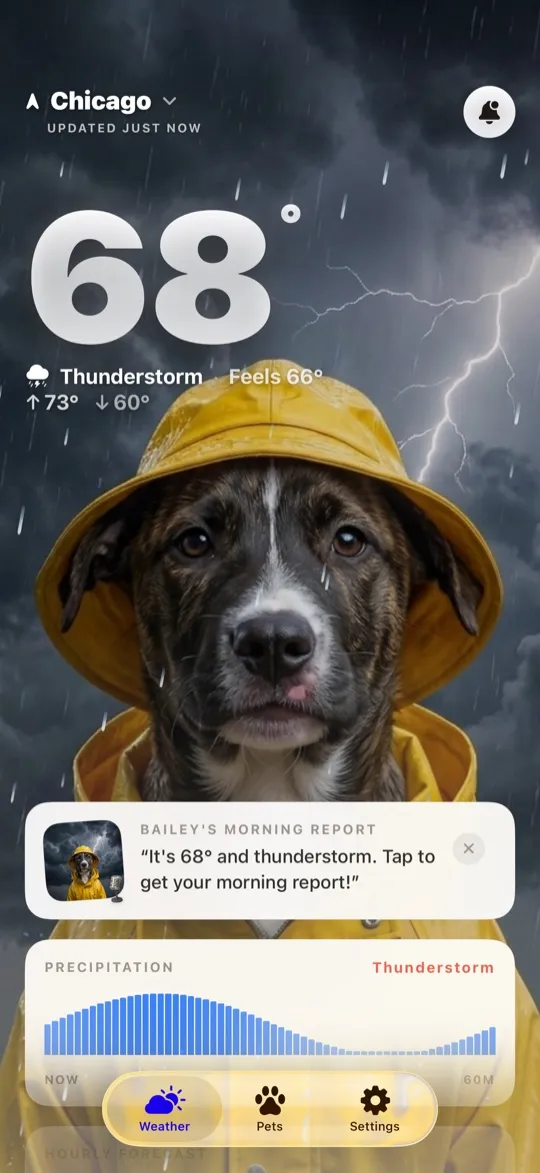
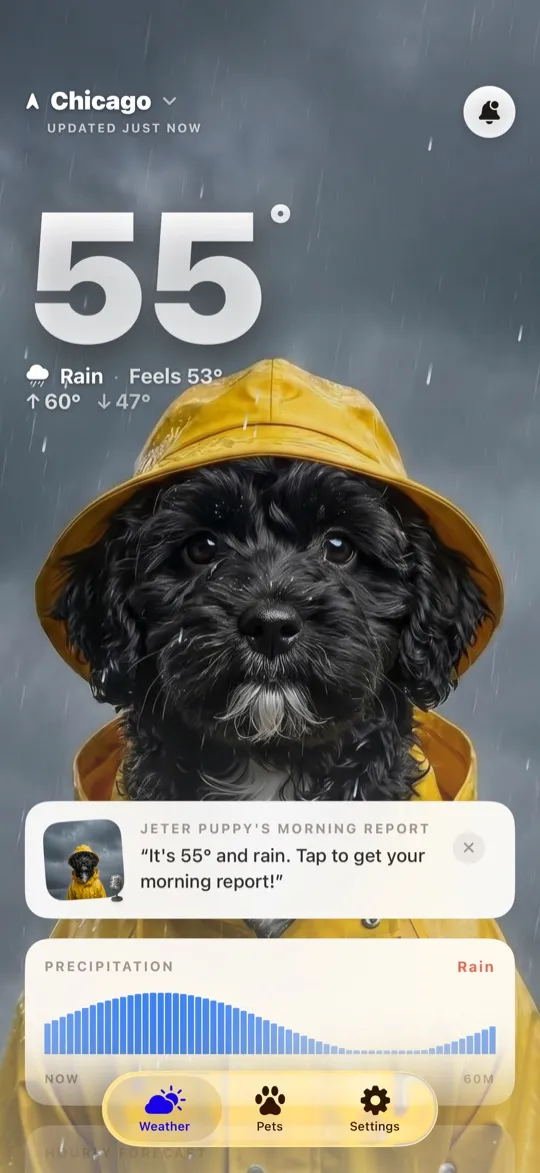
Every weather widget shows a number. Ours shows a number and your dog.
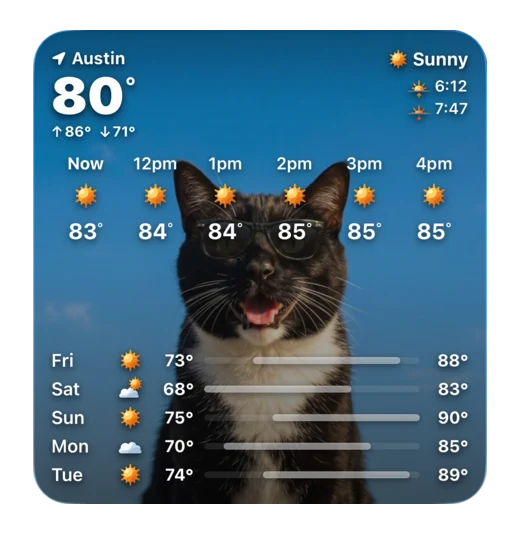
The medium WeatherPets widget gives you your city, the current temperature in large type, the condition, today's high and low, and the next six hours, with your pet in the frame behind it. The large widget adds a five day outlook with sunrise and sunset. The Lock Screen widget puts the temperature above your clock. And when the weather is doing something worth watching, a Live Activity pins the conditions to your Lock Screen and the Dynamic Island until you dismiss it.
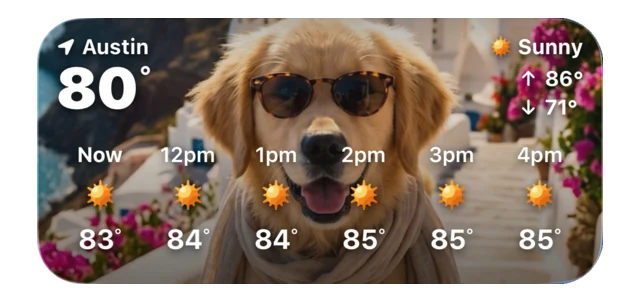
The forecast underneath is Apple WeatherKit, the same source as the built-in Apple Weather app, so you are not trading accuracy for personality. Apple's own WeatherKit documentation covers what that data includes.
Two honest notes. The widget is free, including the Lock Screen widget and your pet's photo next to live weather, but the AI generated weather scenes in your widget and the Live Activity are part of the subscription. And if you do not have a pet, setup now offers a pet avatar you choose and name instead, which we get into in our ranking of animal weather apps for iPhone.
A weather widget only works if you notice it, and after the second week most people have stopped noticing a grey number. This one has a face. Download WeatherPets and pick your pet.
2. Apple Weather, the default that is genuinely good now
It would be silly to write this list and pretend the built-in widget is bad. It is not. The large Apple Weather widget shows current conditions with an hourly row and a ten day outlook, the medium is a clean hourly strip, and the Lock Screen version can carry sunrise, sunset or precipitation chance in a single line. It costs nothing, it is already on your phone, and it never asks you to subscribe to anything.
Its limitation is the same as its strength: it is deliberately plain, it has no Live Activity, and there is nothing to configure. If the stock widget is all you need, you can stop reading here and go outside. We wrote a fuller comparison in WeatherPets vs Apple Weather.
3. CARROT Weather, the most configurable widget on iOS
CARROT Weather has spent a decade earning its reputation, and with more than 86,000 ratings at 4.7 it is the power user's pick. You choose which data points appear in each widget size, pick from several layouts, and get CARROT's famously unhinged commentary on your Home Screen if you want it. Lock and Home Screen widgets, Live Activities and Apple Watch complications are all there.
The catch is the pricing ladder. Widgets and complications sit in the Premium tier, and a Premium Ultra tier adds storm cell notifications, super-res radar and a weather maps widget. If you enjoy tuning things, this is the best money on this list. If you do not, the number of switches is the problem. Our head to head with CARROT covers the differences.
4. Weather Strip, the whole day in one bar
Weather Strip is the smartest information design in weather apps, and it is a widget-first app by nature. Rather than a number, it draws a continuous timeline of clouds, rain, snow, wind and other phenomena, so you read the shape of the day instead of comparing hourly figures. Once the format clicks, going back to a row of numbers feels crude.
Its own App Store listing calls it an app and widget bundle, which is the right way round. Pick it if: you plan around weather rather than just dressing for it. Skip it if: you want one glanceable number.
5. Hello Weather, the minimalist's choice
Hello Weather is calm, fast, and quietly excellent, with Home and Lock Screen widgets plus a full Apple Watch app and complications. It speaks 27 languages. If your Home Screen aesthetic is restrained and you want a widget that never shouts, this is it. The tradeoff is that the best data sources sit behind the subscription.
6. Widgetsmith, if the look matters more than the source
With more than 765,000 ratings, Widgetsmith is the app that made custom widgets a thing in the first place. Weather is one type among many, and you control the fonts, colors, borders and themes down to the pixel, then schedule different widgets for different times of day: weather in the morning, calendar during work, activity rings in the evening.
Pick it if: you are building a whole Home Screen aesthetic and weather is one tile in it. Skip it if: you want a purpose-built weather widget with alerts and radar behind it.
How to add a weather widget to your Home Screen
Under a minute, and the steps are the same for every app.
- Touch and hold an empty spot on the Home Screen until the apps start to jiggle.
- Tap the plus button in the top corner to open the widget gallery.
- Search for the app by name, or scroll the list to find it.
- Swipe through the sizes, pick the one you want, then tap Add Widget.
- Drag it where your thumb naturally lands, and tap Done.
Apple's own walkthrough for adding and customizing widgets covers the edge cases, including stacking widgets so you can swipe between them.
How to add a weather widget to your Lock Screen
This is the one most people skip, and it is the most valuable slot on the phone. You see the Lock Screen every single time you pick up your iPhone, without unlocking anything.
- Touch and hold the Lock Screen until the Customize button appears, then tap Customize and choose Lock Screen.
- Tap a widget slot, either the row above the clock or the area below it.
- Pick your weather app from the list to drop it in.
- Tap Done to save.
Apple's guide to customizing your Lock Screen has the full detail, including building separate Lock Screens for different Focus modes. A quiet weekend Lock Screen with the weather on it is a small, genuinely nice thing.
Live Activities beat widgets on a changeable day
A widget refreshes on a schedule the system decides. A Live Activity is the real-time version: it pins the current conditions to your Lock Screen and, on iPhones with the Dynamic Island, to the top of the display, and it keeps updating until you dismiss it.
For weather, this matters exactly on the days it matters. A heat wave building through the afternoon, a storm front sliding in, temperatures dropping fast at dusk. WeatherPets and CARROT both offer them; Apple Weather does not. Our Live Activities guide walks through starting one and when it is worth it.
What iOS 27 changes about widgets
Most iPhones are on iOS 26 right now. iOS 27 has been in public beta since mid July 2026 and is expected to reach everyone in September, and the changes land mostly on the Lock Screen. According to 9to5Mac's rundown of the iOS 27 Lock Screen, there is a new compact clock layout that moves the time up beside the date and widgets, an Apple Intelligence option that extends a wallpaper to fit properly, and the ability to dismiss the Now Playing widget so it stops eating the space your widgets want. MacRumors covers the same set, along with more resizable and context aware Home Screen widgets.
Nothing here breaks the widgets you already have. The practical upshot is simply that the compact clock frees up Lock Screen space, so it is a good moment to actually put weather there.
Fixing a weather widget that will not update
This is the most common complaint about every weather widget on iOS, and it is almost never the app's fault. Work down this list in order.
- Location permission. Settings, then the app, then Location. Set it to Always or While Using, and make sure Precise Location is on. A widget with no location shows nothing useful.
- Background App Refresh. Settings, General, Background App Refresh. If it is off, widgets update far less often.
- Low Power Mode. It throttles background updates by design. A widget that is stale only when your battery is low is working exactly as intended.
- Remove and re-add the widget. This forces a fresh timeline and clears most stuck states in seconds.
- Restart the iPhone. The unglamorous fix that resolves the rest.
So which one should you use?
If you want a widget that is accurate, free and invisible in a good way, keep Apple Weather and move on with your life. If you want to tune every pixel of the data, pay for CARROT. If you want to read the day as a shape, Weather Strip. If you are art directing your Home Screen, Widgetsmith.
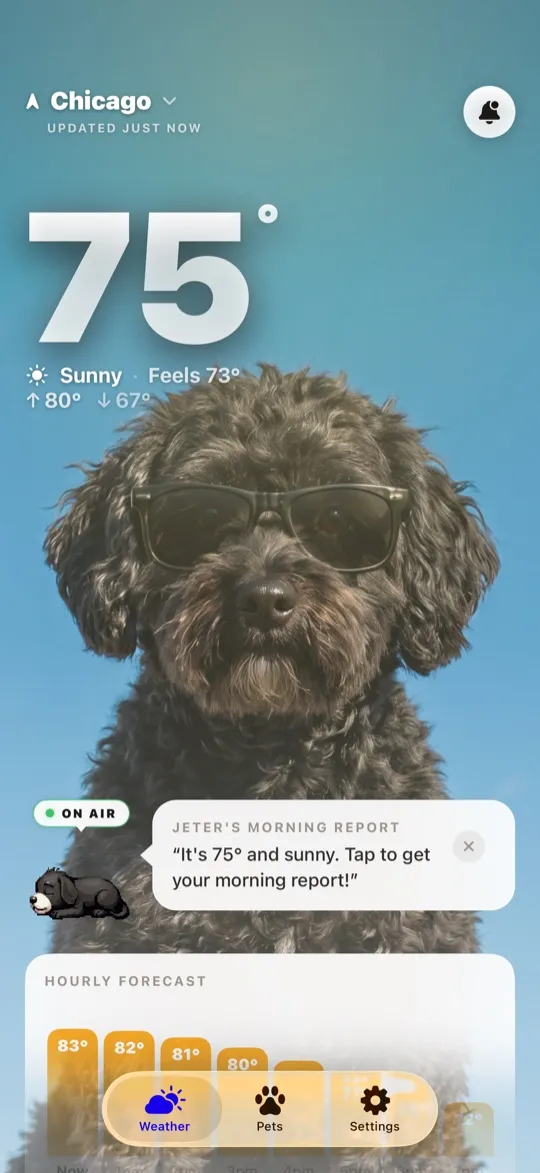
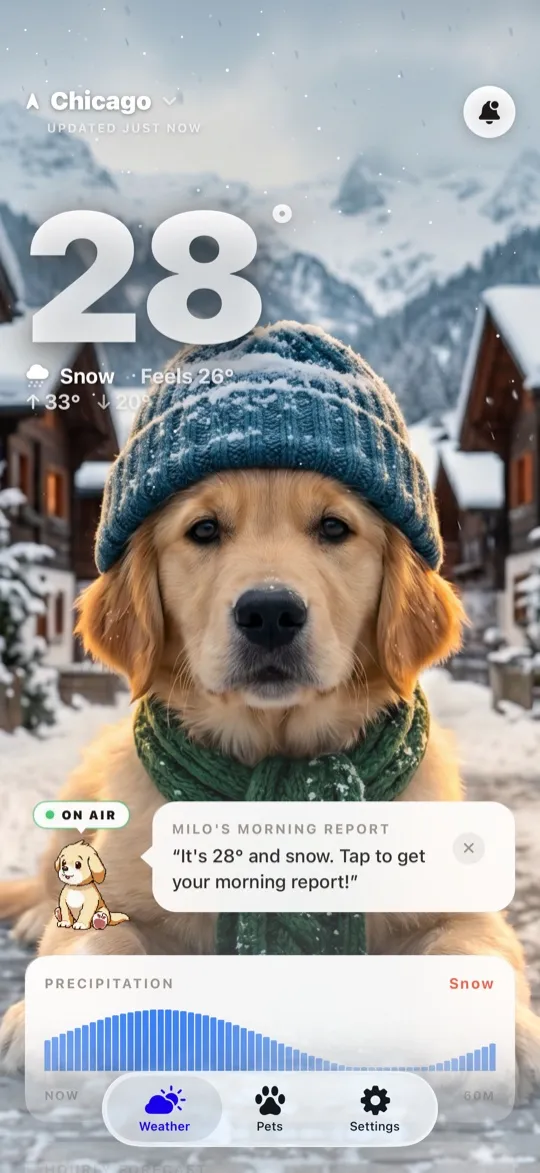
And if the reason your weather widget stopped working for you is that you stopped looking at it, put something on your Home Screen you are happy to see: your own dog, your cat, or a pet avatar you picked yourself, standing next to the current temperature. That is the whole idea behind ours.
Your daily forecast, delivered by your own pet.

Frequently asked questions
How do I add a weather widget to my iPhone Home Screen?
Touch and hold an empty area of the Home Screen until the apps jiggle, tap the plus button in the corner to open the widget gallery, search for the weather app you want, swipe through the available sizes, then tap Add Widget and Done. The steps are identical for every weather app, including Apple's own.
How do I put weather on my iPhone Lock Screen?
Touch and hold the Lock Screen until the Customize button appears, tap Customize, then tap Lock Screen. Tap one of the widget slots above or below the clock, choose your weather app from the list, and tap Done. Lock Screen widgets are small, so pick the one data point you actually want at a glance.
Why is my iPhone weather widget not updating?
Almost always location or background refresh. Check that the app has location access set to Always or While Using with Precise Location on, and confirm Background App Refresh is enabled in Settings. Low Power Mode also throttles widget updates. If it is still stuck, remove the widget and add it again, which forces a fresh timeline.
What is the best free weather widget for iPhone?
Apple Weather is the best free widget for pure data, since it ships on every iPhone with no account and no upsell. If you want a free widget you will actually look at, WeatherPets puts your own pet or a pet avatar next to the temperature and keeps Home and Lock Screen widgets on the free tier.
Do weather widgets drain iPhone battery?
Not meaningfully. Widgets do not run continuously. They render on a timeline the system schedules, and iOS budgets how often each one may refresh. A Live Activity updates more often while it is running, so end it once the weather event you were tracking has passed.
Does iOS 27 change iPhone widgets?
Yes, mostly on the Lock Screen. iOS 27, in public beta since July 2026 and expected to ship publicly in September, adds a compact clock layout that moves the time up next to the date and widgets, gives the Home Screen more resizable and context aware widgets, and lets you dismiss the Now Playing widget. Existing weather widgets keep working.
