How to Turn Your Pet Into a Weather Reporter
Turning your pet into your personal forecaster takes about five minutes and one good photo. Here is the full walkthrough, from download to your first morning report, plus the photo tips that make the AI scenes come out great.
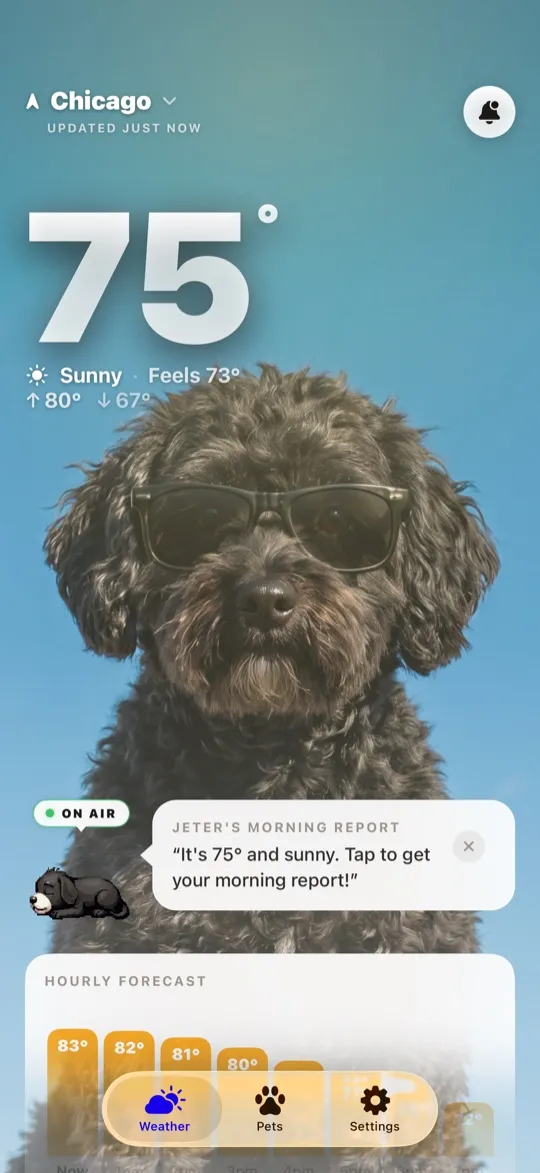
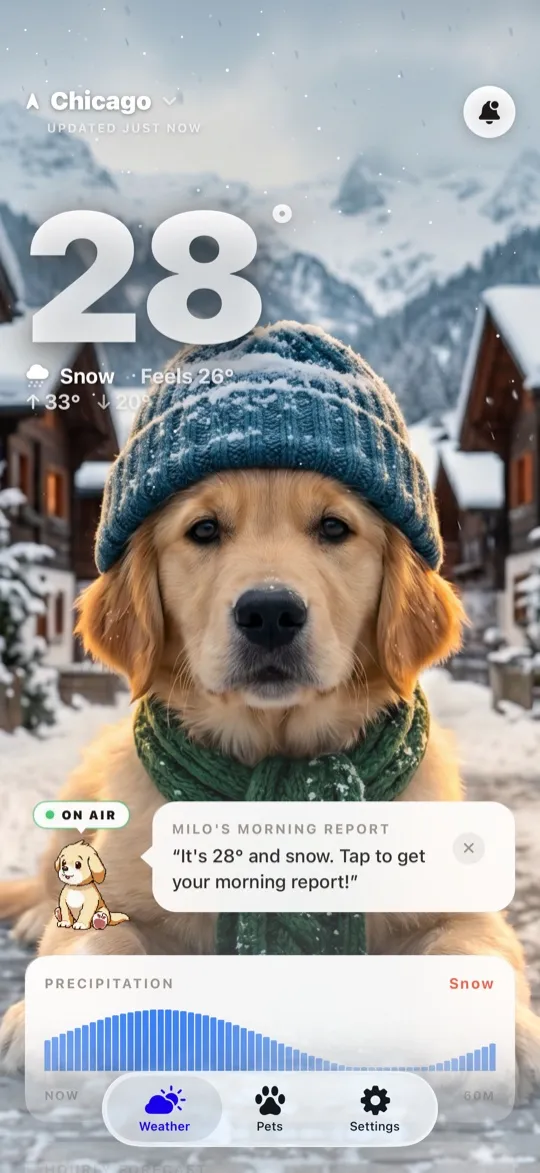
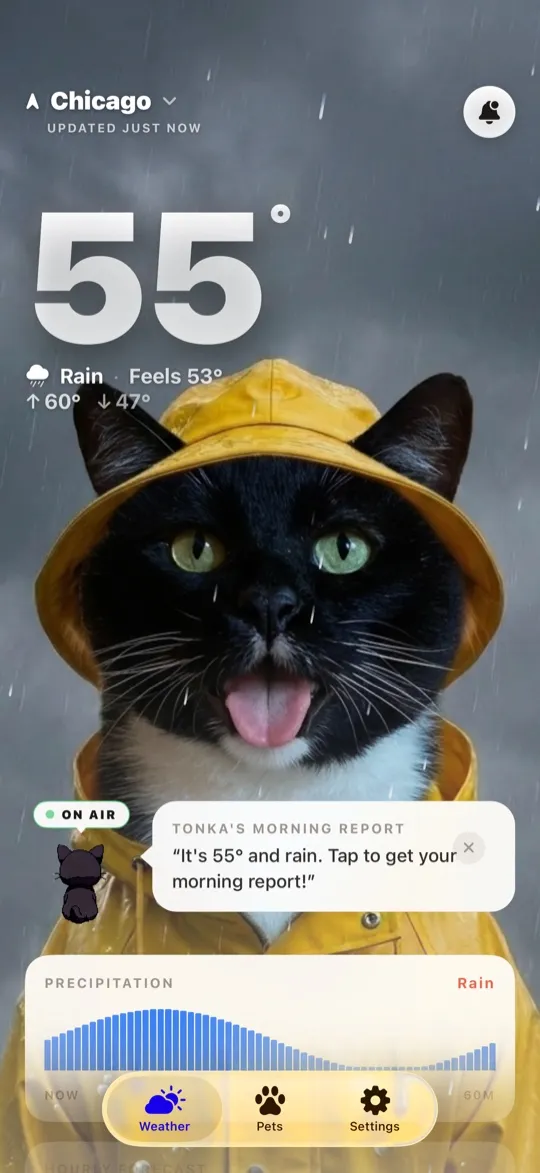
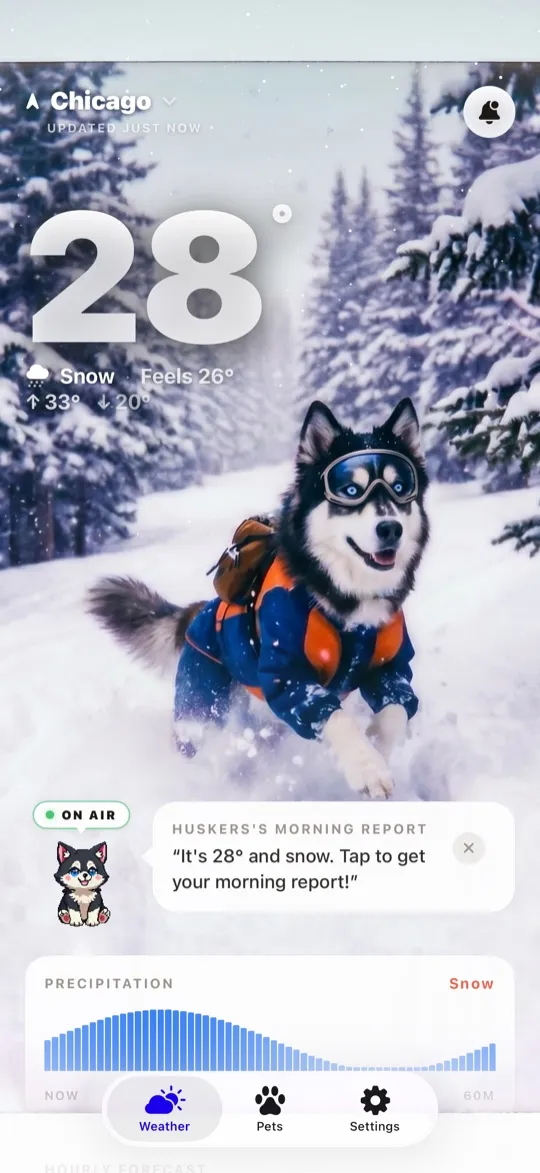
WeatherPets uses AI to make your real dog or cat the star of your daily forecast. You upload a photo, answer a few questions about their personality, and from then on your local weather arrives as scenes starring your actual pet: sunny days, rainy days, snow, fog, and everything between. A little setup up front, then a daily smile every time you check the weather. If you want the big-picture overview first, start with what WeatherPets is. Otherwise, let's get your reporter on the air.
What you'll need
- An iPhone running iOS 17 or later. WeatherPets is an iOS app.
- One clear photo of your pet. More on what makes a good one in a moment.
- About five minutes. Most of which you will spend deciding which adorable photo wins.
Step 1: Download the app and allow location
Add WeatherPets from the App Store and open it. When it asks for your location, allow it. That is how your pet reports the weather outside your window; the forecasts come from Apple WeatherKit, the same data source behind the built-in Weather app, with hourly detail and a 10-day outlook. Without location, your new reporter has nothing to report.
Step 2: Upload a photo of your pet
This is the heart of the setup. The AI studies the photo to capture your pet's likeness — their coloring, their markings, that one ear that never sits right — so they look like themselves in every generated scene. A better photo means a better reporter, so it is worth taking thirty seconds to choose well:
- Good, natural light. A photo taken near a window or outside beats a dim indoor shot every time.
- Face clearly visible. Eyes open, looking at or near the camera, nothing blocking the face.
- Let them fill the frame. A close, sharp shot gives the AI more to work with than a speck across the yard.
- One pet per photo. Keep other pets and people out of the shot so the AI knows exactly who the star is.
- Sharp beats cute. A slightly less funny photo that is in focus will produce better scenes than a blurry masterpiece.
One note on privacy, because it is a fair question: your photos are stored encrypted and are never used to train AI models. The details are in our privacy policy.
Step 3: Take the personality quiz
Next, tell WeatherPets a little about who your pet actually is — playful, dramatic, sleepy, a certified treat fanatic. These traits shape the voice of their weather reports, so a laid-back senior dog delivers a mellow briefing while a chaotic kitten makes a light drizzle sound like breaking news. Answer honestly. The reports are funnier when they sound like the animal you actually live with.
Step 4: Meet your first scene
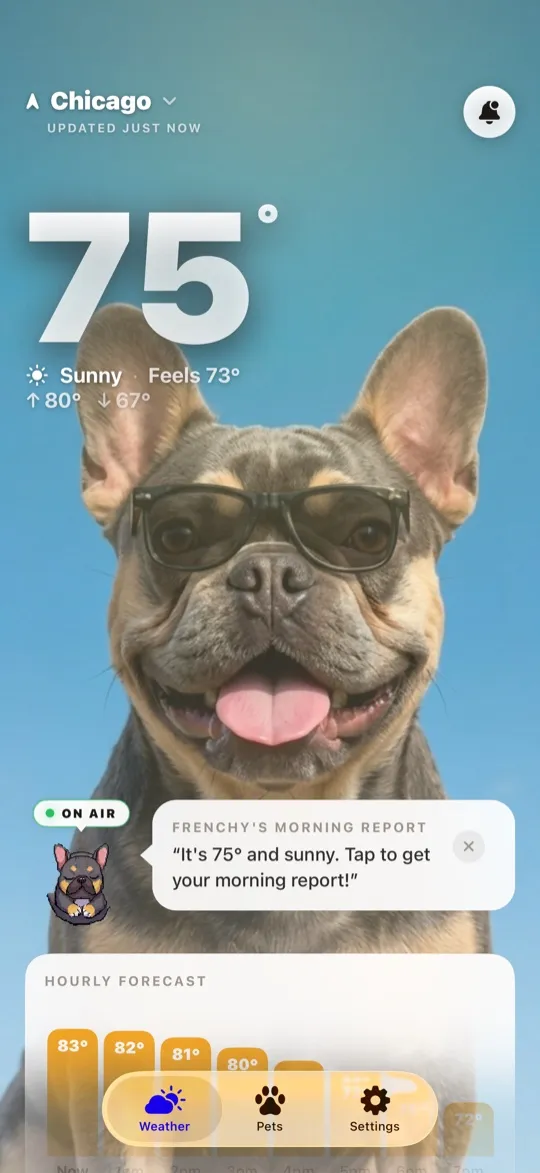
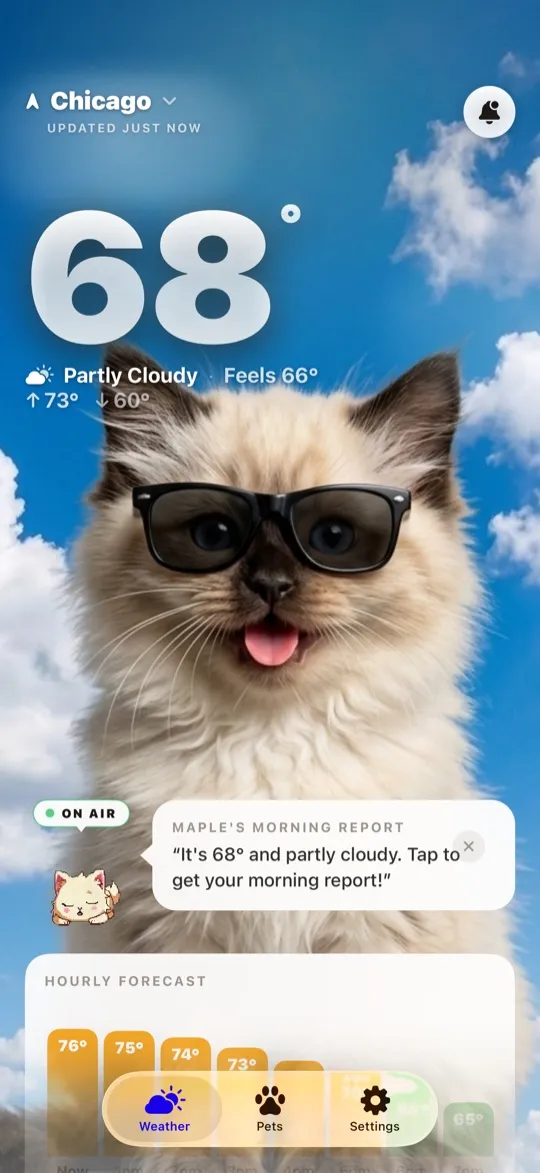
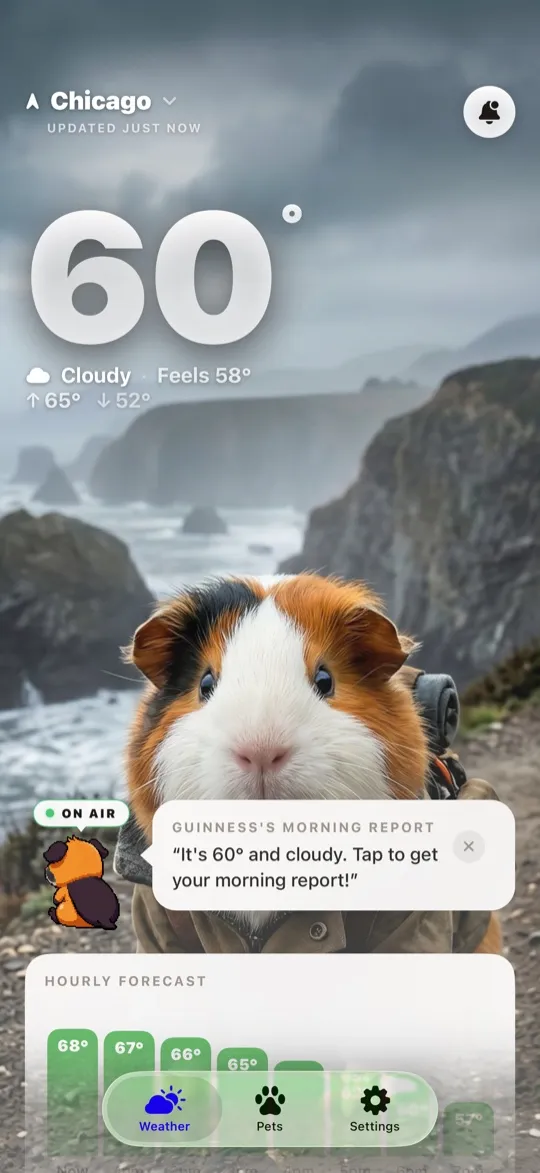
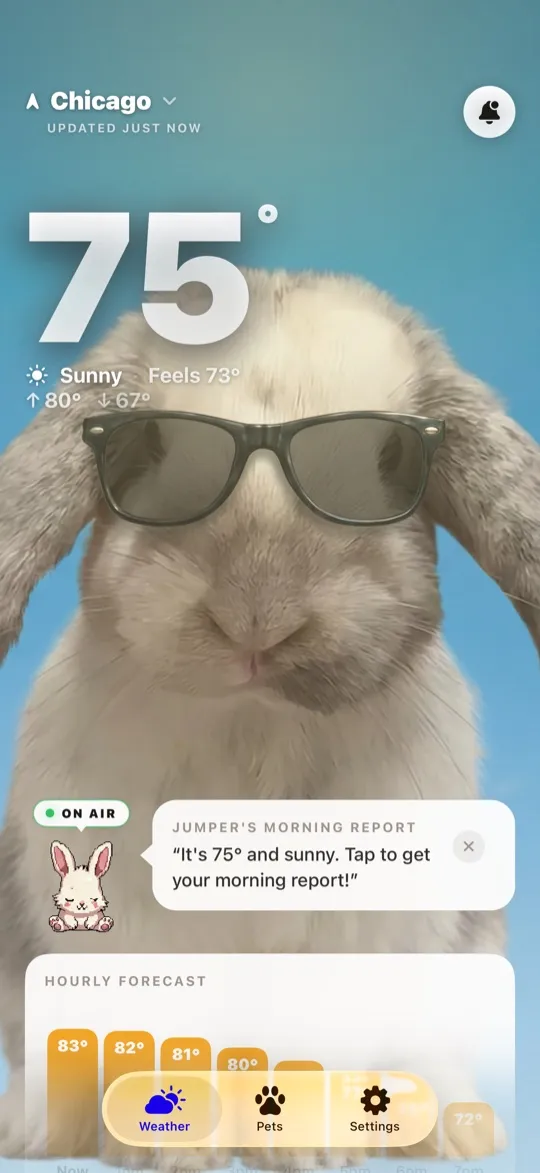
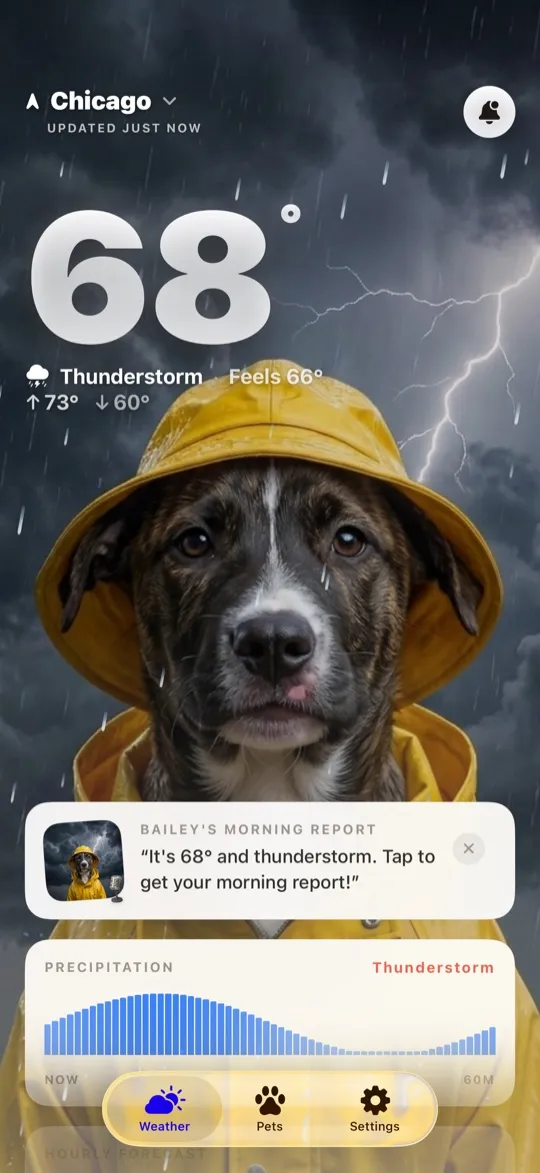
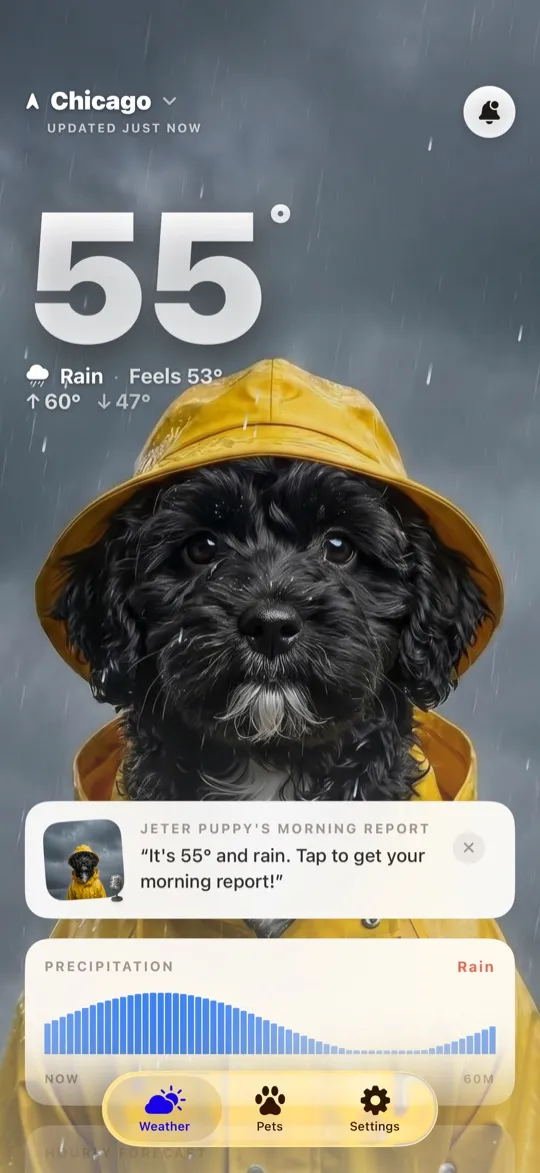
With the photo and personality in place, WeatherPets generates your first scene: your pet, rendered by AI, in a setting that matches the live weather outside right now. Sunny afternoon? They are out enjoying it. Rain moving in? They are dressed for the occasion. You will also meet their animated pixel reporter avatar, a tiny character version of your pet that blinks and bobs while on duty. As conditions change through the day, the scenes change with them.
Not feeling the default look? Style packs let you switch the art direction — realistic, cinematic, watercolor, or a retro pixel art style — whenever you want a fresh take.
Step 5: Put your pet on your home screen
The quickest way to enjoy WeatherPets is to never open it at all. Touch and hold an empty spot on your home screen, tap the plus button, search for WeatherPets, and pick a widget in small, medium, or large. Now your pet greets you with the current temperature and conditions every time you unlock your phone. For the full setup walkthrough, including where each size shines, see our widget guide.
Step 6: Turn on the morning report
Finally, allow notifications so your pet can deliver a morning report: a short daily briefing, in their voice, covering what the day holds and when it changes. There is an evening report too, which looks ahead to the overnight and tomorrow morning so you go to bed prepared. Both are covered in detail in our post on morning and evening reports, including how to time them around your routine.
What to expect after setup
From here, your pet is your forecaster, rain or shine. Scenes refresh as the weather shifts, severe-weather alerts come through when something serious is brewing, and the morning report becomes the small ritual that starts your day. The free tier gets you started with one pet and a limited number of scenes; premium unlocks more scenes and multiple pet profiles if your household has a whole news team's worth of talent. Speaking of which, if you want to see finished examples before you commit a photo, meet our demo crew on the WeatherPets News Team page, and check the FAQ for anything this guide didn't cover.
For the practical version of the same idea, the Pet Safety Score in WeatherPets turns the day's conditions into a single 0 to 100 read on whether it is safe for your pet to be outside right now. Meet your WeatherPet on the App Store.
Your daily forecast, delivered by your own pet.